How To Lock and Unlock Files in VSCode
Submitter: Joel Hofmann
When programming with multiple repositories, there may be code you want to prevent yourself from editing. For example, you may have a custom game engine that you're using to develop a video game, and when working on the video game you want to prevent yourself from editing engine files. Visual Studio Code offers the ability to lock access to specified folders or files to prevent this problem.
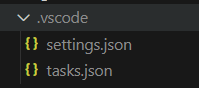
Your project should have a .vscode folder in the main directory. In this folder, create a file called "settings.json".
Now, create brackets for the json parameters.
Create a parameter called "files.readonlyInclude", like so. To lock a specific file, add its directory as a parameter of the readonlyInclude, and set it to true.
To lock an entire folder, add "**" after the folder's filepath.
If you want to exempt files or folders from being locked, add a parameter called "readonlyExclude" using the same method.
