Convert White Background to Transparent in Clip Studio Paint
Submitter: Joel Hofmann
When a drawing is exported to a flat image file, the transparency is lost, making it infeasible to edit the lines or color inside the linework. This guide will teach you how to reverse this and get a transparent image using Clip Studio Paint.
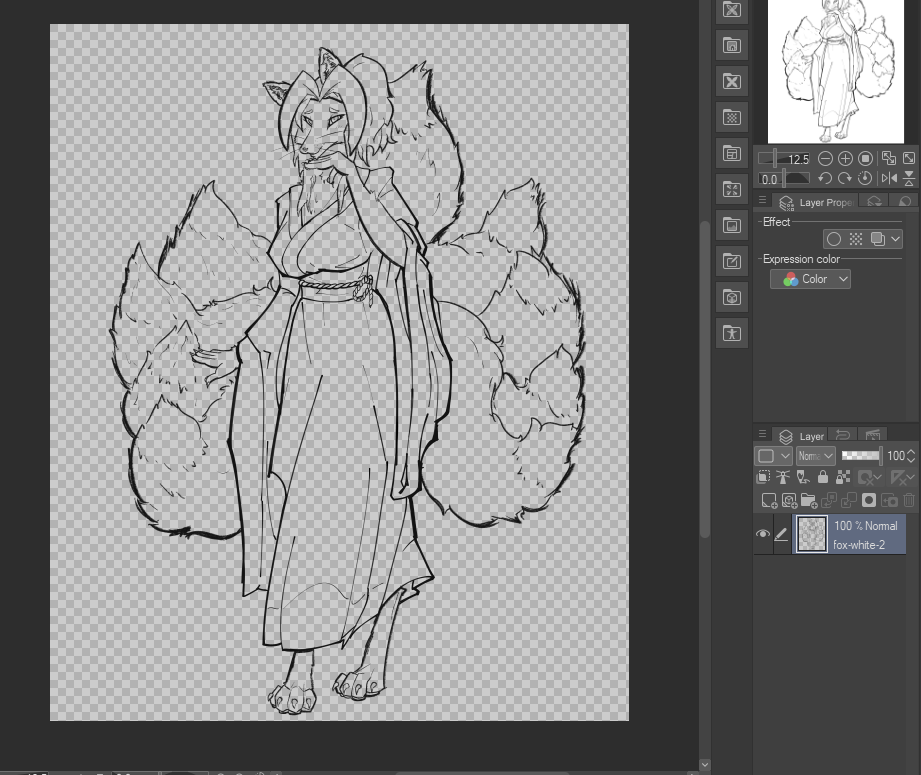
First, get your lineart image, like this one here.

Import the image into CSP in a new tab.
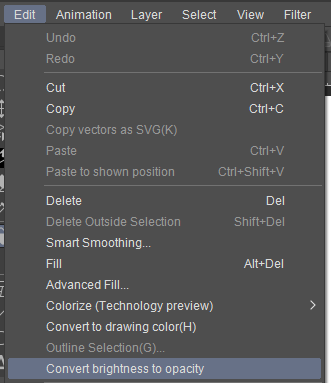
Now, go to the Edit menu and select "Convert Brightness to opacity".
Your image should now be transparent, allowing you to more easily edit the lines.